Elisabeth L.
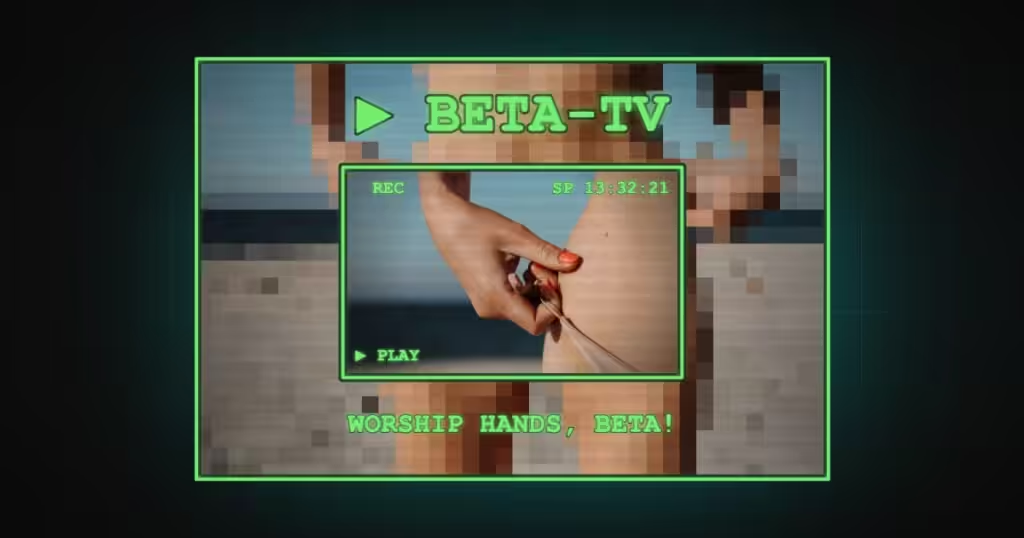
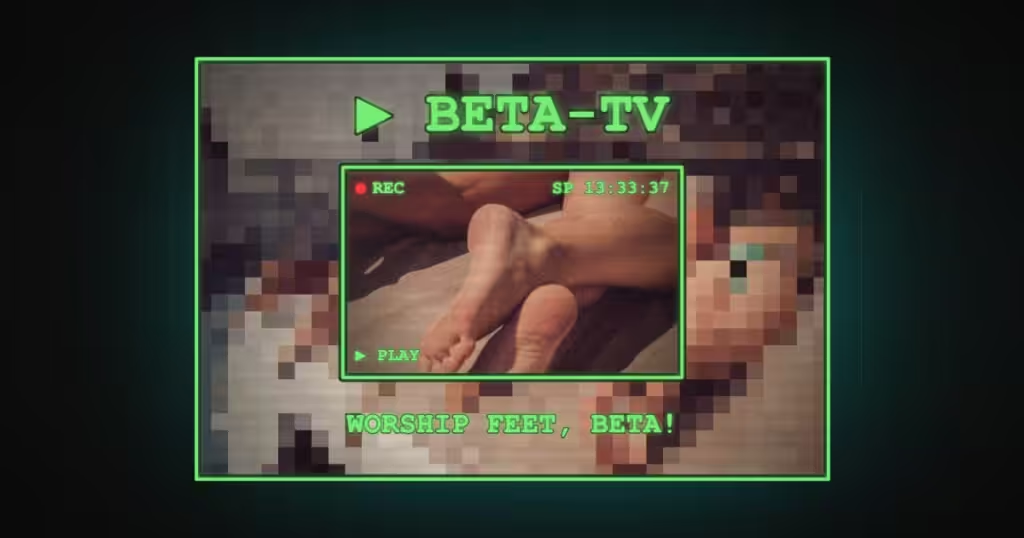
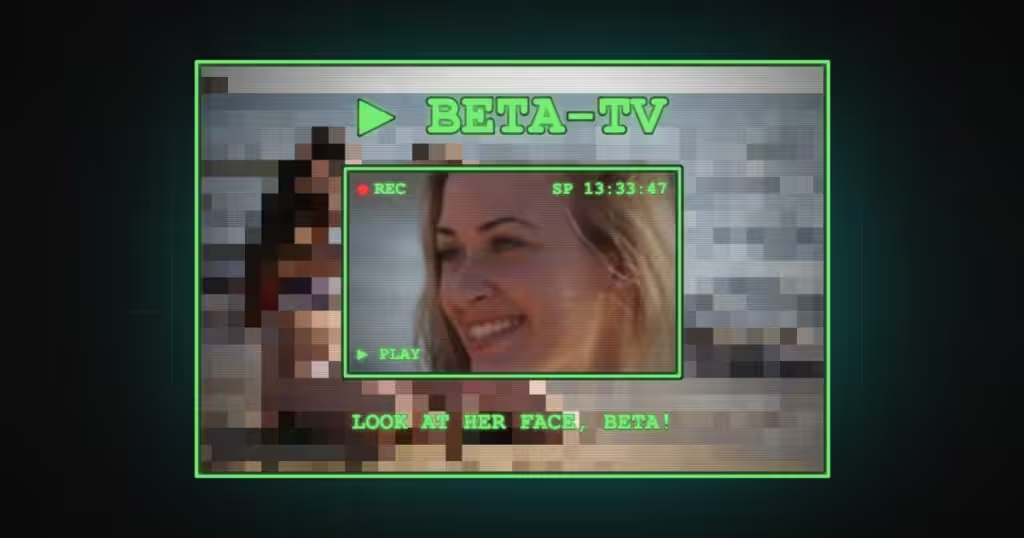
Beta TV Mode changes what DeniedPixels leaves on screen. Instead of covering the detected parts of an image and leaving everything else visible, it pixelates the entire image or video, then draws a small framed window on top showing a zoomed-in crop of a single body part.
You choose which body parts are eligible, and in what order, before you start browsing. For each image the extension looks for the highest-priority part on your list and crops the window to it. If it can’t find any of them, the window shows TV static.
The result is a page where nothing is directly visible and one small screen shows you whichever part the extension decided you get to look at. It’s the most restrictive of the viewing modes in DeniedPixels, and the one most censored denial setups end up on.
BetaTV focused on hands
BetaTV focused on feet
BetaTV focused on face
How it works
When Beta TV Mode is active, DeniedPixels applies whole-media pixelation to the entire image or video frame. Not the detected zones, the whole thing.
On top of that pixelated layer it draws the BETA-TV window: a small bordered panel with a live crop of one picked body part, zoomed in. The extension scans the media for the body parts on your priority list, finds the highest-priority one present, and crops to it. On video, the window tracks that part as it moves through the frame.
That’s the whole mechanic. Everything else is configuration.
Body parts and priority
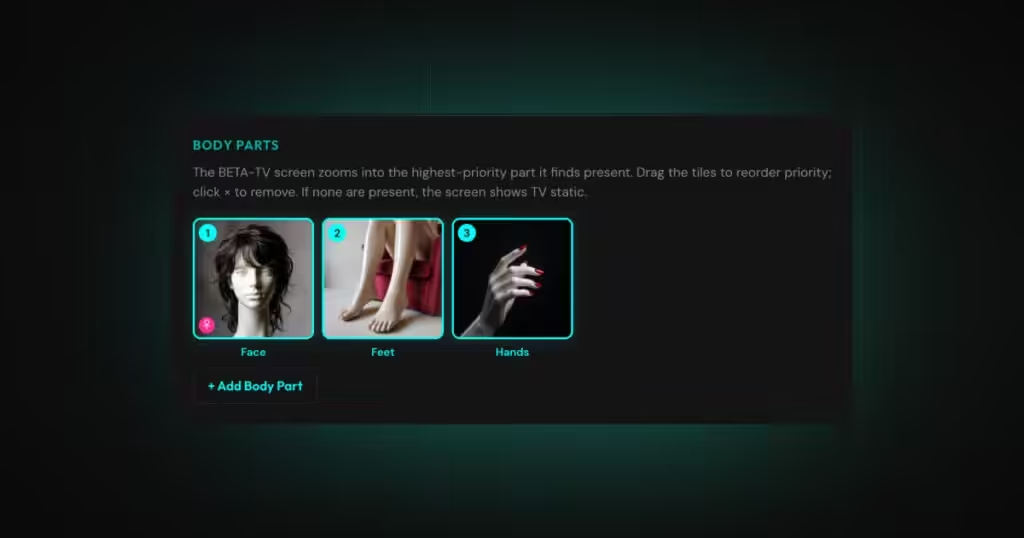
The body part list is what makes Beta TV worth configuring properly. You add parts as tiles, and the order of those tiles is a strict priority order.
The extension works down the list from position one. If the highest-priority part is present in the media, that’s what the window shows. If it isn’t present in this particular image, the extension falls through to position two, then position three, and so on.
Drag the tiles to reorder them. Click the × on a tile to remove it. Use + Add Body Part to extend the list.
A list ordered Face, Feet, Hands means: show me face if it’s there. No face in this shot, show me feet. No feet either, show me hands. The fallback chain is what keeps the window populated across a full page of media instead of cutting out every time your first choice isn’t in frame.
Worth thinking about how you order it. Putting a part high in the list that appears in almost every image means you’ll see that part almost every time. Putting a rare part first means you’ll spend more time falling through to your lower choices, or seeing nothing at all.
If none of the body parts on your list are present in the media, the BETA-TV window shows TV static noise.
Your detection zones still apply inside the window
The BETA-TV window doesn’t bypass your normal censoring. It’s a crop of the media, and everything inside that crop is handled exactly as it would be anywhere else on the page.
Take Face as an example. Put it at the top of your priority list and leave it switched off in your detection zones, and the extension finds a face, crops to it, and gives you a clean close-up.
What comes with it depends on how tight the crop is. The window is a rectangle, not a cutout of the face itself, so anything else falling inside that rectangle is in the window too, and if it’s a part you have selected in your detection zones it arrives already covered by your censoring style. You get her/his face in full detail with a pixelated breast or genetalies sitting right beside it in the same frame. Widen the reveal zoom and more of the surroundings pull in, which means more censored parts around the face. Tighten it and you’re left with the face alone.
Apply to Images
Beta TV runs on both images and video by default.
Apply to Images controls whether still images are included. Turn it off and images fall back to your normal censoring style and whatever main mode you’re running, while video continues to use Beta TV.
Warnings, locks and penalties
Beta TV has its own on-screen warning panels. When content is detected during an active lock, a warning box appears reading “inappropriate content detected,” and where you have per-body-part time penalties configured in Self Lock, the panel runs a live ticker of the time being added to your lock, part by part, as the detector finds them.
Hide Beta TV warnings switches the panels off. The penalties still apply in full. Only the warning box is hidden, so time keeps stacking up without the running commentary. Leave it off if the ticker is the point; turn it on if you’d rather find out later.