Elisabeth L.
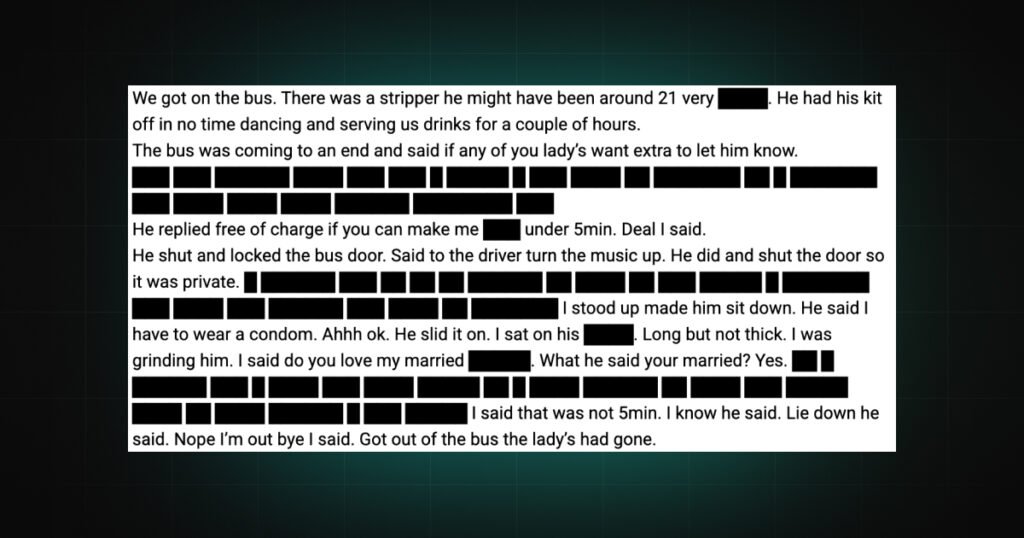
Everything else in DeniedPixels works on images and video. Text Censoring is the exception: it blacks out explicit words in the actual text of a page, so the writing gets covered the same way pictures do.
It only touches text that’s already on the page. Anything you type yourself is left alone, so search boxes, message fields and forms keep working normally. This is about what you read, not what you write.
The built-in wordlist
DeniedPixels ships with a large built-in list of explicit terms, several hundred of them, and matches page text against it. You don’t have to build the list yourself; it works the moment the feature is on.
The count shown in settings is the built-in list plus anything you’ve added, so you can see at a glance how many terms are active.
Ambiguous words
Some words are explicit in one context and completely innocent in another. Include Ambiguous Words decides whether those are covered.
Most explicit writing relies on these dual-meaning words, so the toggle is on by default and catches the most content. The trade-off is the occasional false positive: an innocent sentence that happens to use one of those words in its ordinary sense gets blacked out too. If you’re reading something where that’s a nuisance, turning this off makes the filter stricter about only catching unambiguous terms, at the cost of letting more borderline content through.
Deep Scan
The wordlist can only catch text that contains a listed word. Deep Scan goes further: it uses on-device AI to read every sentence and judge whether it’s explicit, which is what catches writing that’s deliberately worded to dodge any obvious vocabulary.
Two things to know before turning it on. A Deep Scan hit blacks out the whole sentence rather than a single word, because the judgment is made at sentence level. And reading every sentence is more work than matching against a list, so it’s heavier on your device. Leave it off unless you’re specifically dealing with content that evades the wordlist, and turn it on when you need that extra reach.
Your words and exceptions
Your Words adds terms to the built-in list, one per line. Disguised spellings are caught automatically, so adding a plain word also matches number and lookalike-letter variants without you listing each one.
Never Censor does the reverse: any sentence containing one of these is left alone, which keeps the feature usable for medical or educational reading.
On-device, like everything else
Like the rest of the extension, Text Censoring runs entirely on your device. The wordlist, the disguise matching and the AI deep scan all happen locally, and nothing about what you’re reading leaves your browser.