Elisabeth L.
Self Lock lets you restrict access to the DeniedPixels popup and settings panel. Once activated, you can’t change any of your extension settings until the lock is released. It’s a self-imposed restriction — you set the terms, then live with them until the conditions are met.
Two unlock conditions
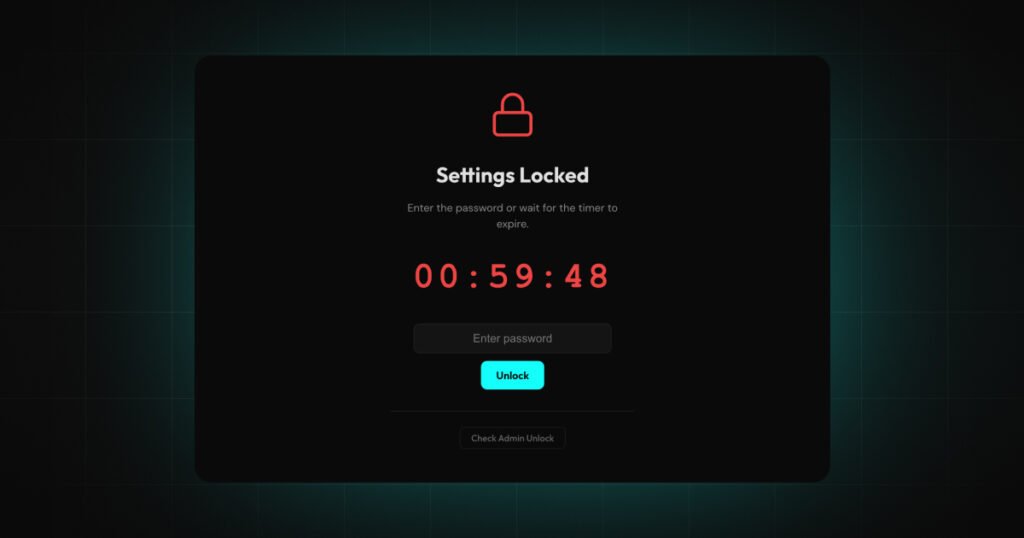
Self Lock has two settings: a password and a timer. You can use either one on its own, or both together.
Password — set a password and the extension locks behind it. You need to enter the correct password to regain access to settings. Simple and immediate.
Timer — set a duration and the extension locks for that period. No access to settings until the timer runs out, regardless of anything else.
When both are active, either condition unlocks the extension. If you know the password but the timer hasn’t expired yet, the password still works. If you’ve forgotten the password but the timer runs out, you’re unlocked anyway. They function as two independent paths back in — not two barriers you have to clear simultaneously.
Body part penalties
This is where Self Lock gets interesting. When the timer is active, you can configure penalty amounts for each detection zone. If the extension detects content matching an active zone while you’re browsing, the corresponding penalty time gets added to your lock timer.
You set the penalty in seconds per detection zone. Each zone can have a different penalty amount — or no penalty at all. When the extension detects a matching zone on any image while browsing, the configured penalty is added to the remaining lock duration automatically.
The practical effect: your lock timer can extend itself based on what you encounter. A short initial lock can grow significantly if penalties are configured aggressively. The timer only counts down — penalties only add time, they never reduce it.
How it fits together
Self Lock operates independently from your censoring configuration. It doesn’t change what gets detected or how it’s censored — it only controls whether you can access the settings panel to make changes. Your censoring styles, detection zones, and any active modes continue working exactly as configured while the lock is in place.
Combined with Shared Access, Self Lock gives you multiple ways to manage how and when settings can be modified. Shared Access delegates control to another person. Self Lock restricts your own access on your own terms.