Elisabeth L.
Only Once Mode adds a permanent blocking layer on top of DeniedPixels’ standard censoring. When enabled, any image that contains detected content gets tracked — and on subsequent encounters anywhere on the web, it’s replaced with a full-image block style of your choice. The image doesn’t just get censored; it gets locked behind a persistent overlay that follows it across every site you visit.
How it works
The first time DeniedPixels encounters a detected image, it applies your current censoring style as normal. The extension also logs that image internally. From that point on, every future encounter with that same image — regardless of which website it appears on — triggers the block mode instead of the standard censor. The image is permanently flagged in your local data.
Timer
There’s an optional timer that changes how the transition to block mode happens. When the timer is enabled, the image initially loads with your selected censoring style applied, then switches to the block style after a random delay. When the timer is disabled, the block style applies immediately on the next page visit — no transition, just a hard switch.
Block styles
When an image enters block mode, the entire image gets replaced with one of 7 block styles. These aren’t the same as the regular censoring styles — they cover the full image, not just the detected zones.
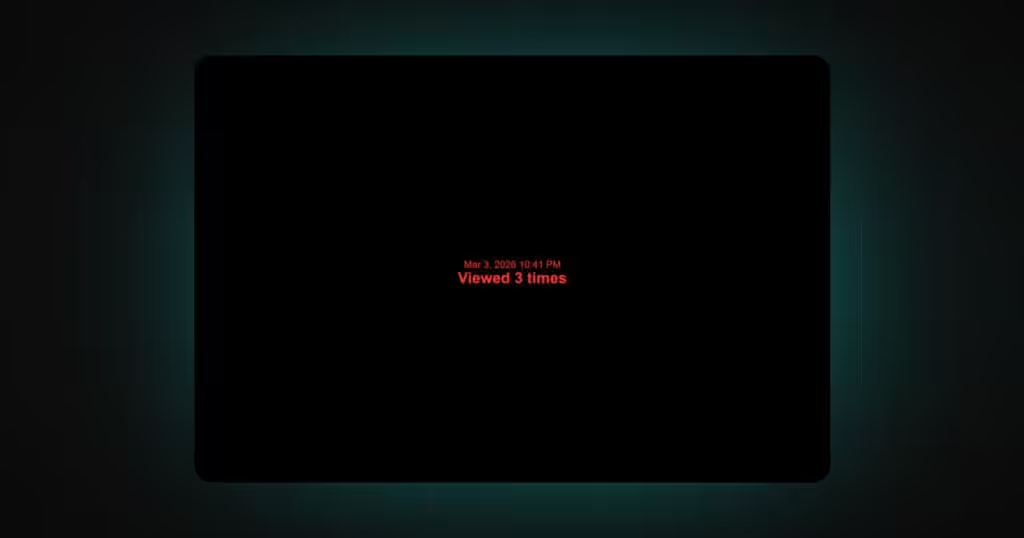
Total Blackness replaces the entire image with solid black. Nothing visible at all.
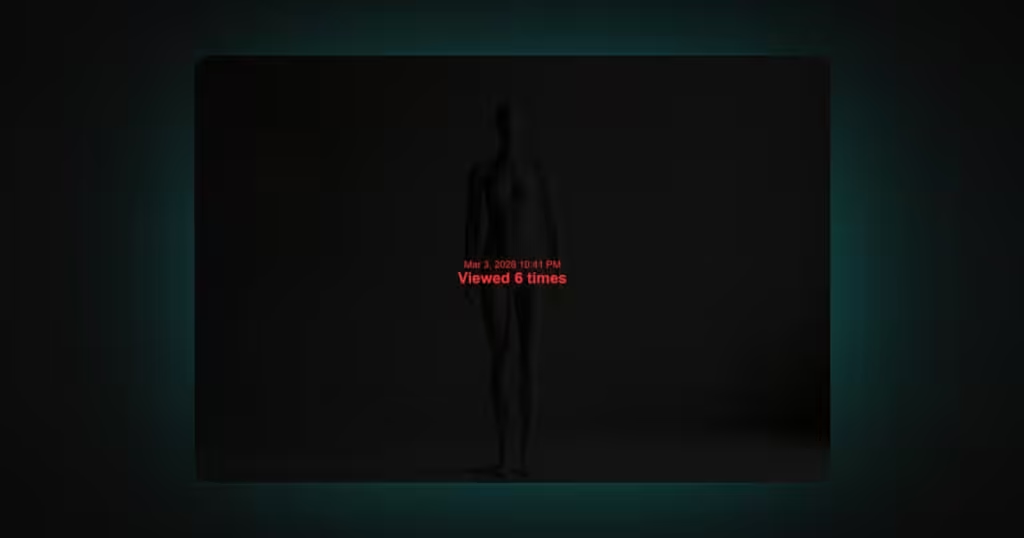
See-Through applies a dark overlay across the whole image. You control the opacity — higher values make it nearly opaque, lower values let more of the image show through.
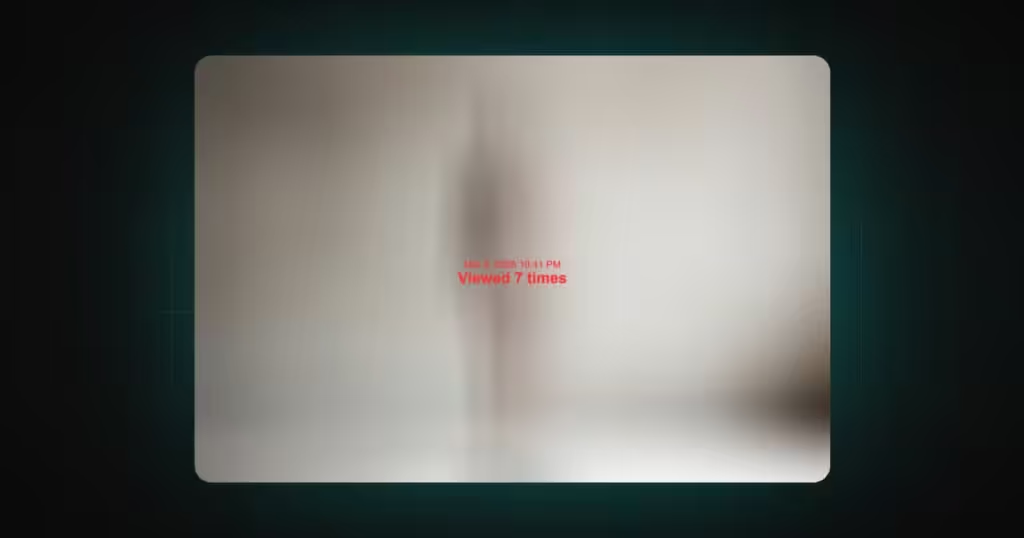
Full Blur blurs the entire image. The blur strength is adjustable, from a light haze to completely unrecognizable.
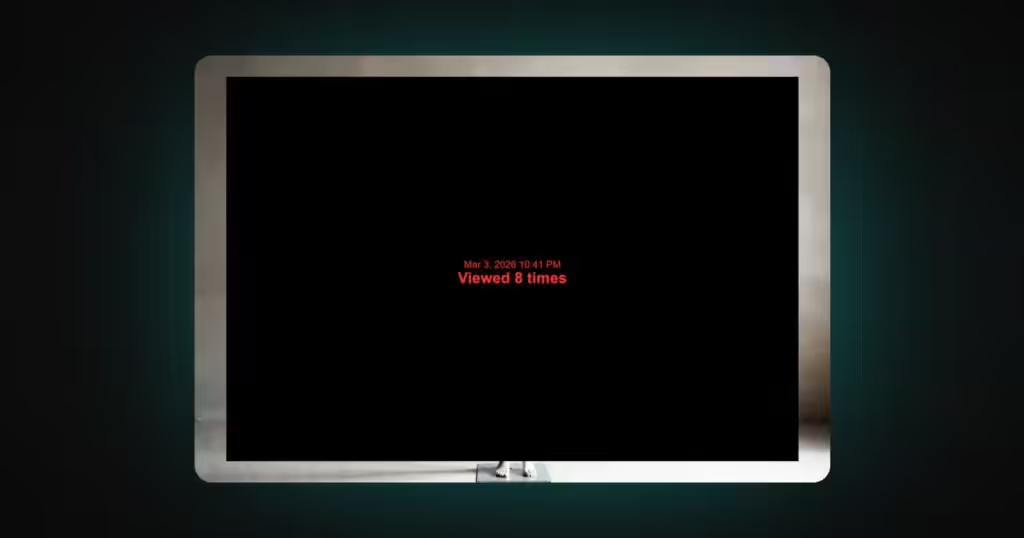
Borderless fills the image with black except for a border around the edges. You set the border width and border radius. The result is a framed black rectangle where only a thin strip around the perimeter remains visible.
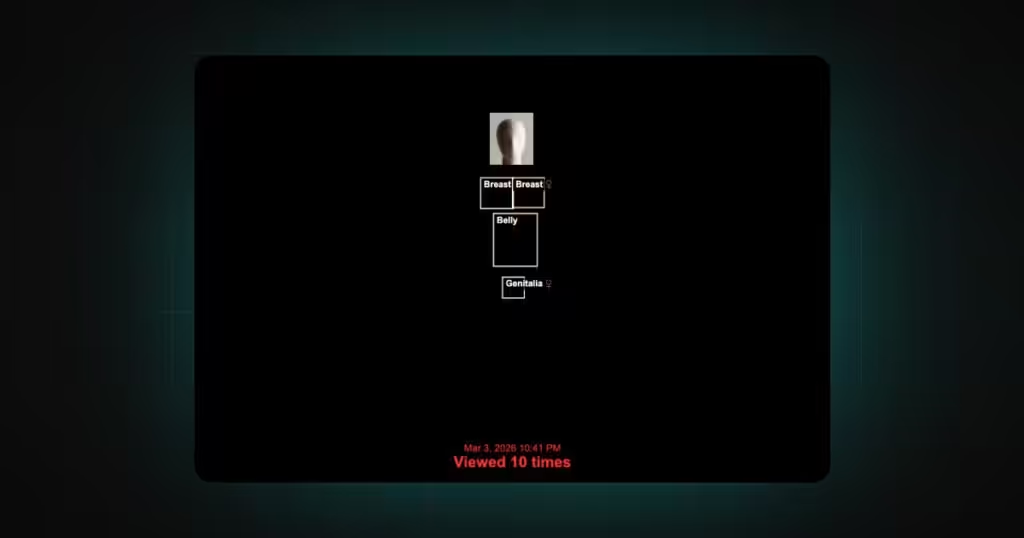
Box Label fills the image with black and places labels over the zones where content was originally detected. There’s also an option to keep face regions visible while everything else remains covered.
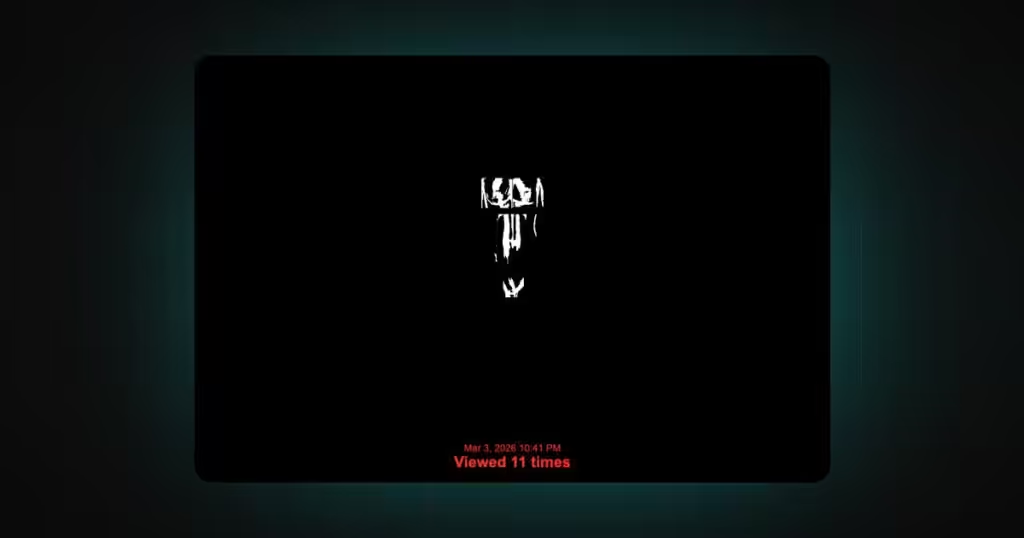
Silhouette fills the image with black and renders white outlines where detected zones were located. The result looks like a high-contrast silhouette map of the detected content areas.
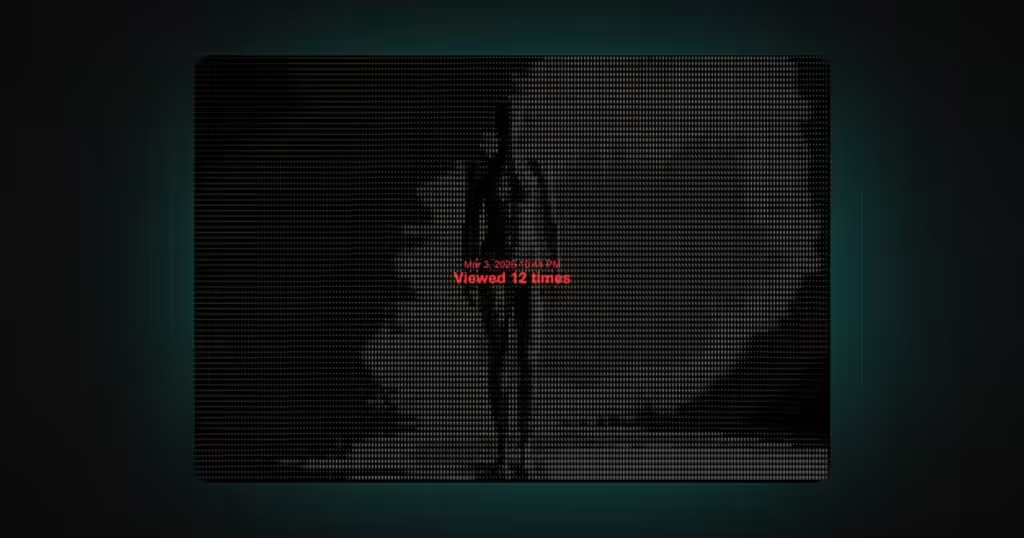
ASCII Art converts the entire image into an ASCII art representation. By default it uses the image’s original color palette, but you can switch to a single color — green for a terminal look, red, or whatever you prefer.
Block message and metadata
On top of the block style, you can add information overlays to blocked images:
Block Message displays custom text in the center of each blocked image. Set it to whatever you want — “Blocked,” “Denied,” or anything else.
Date shows the date and time when the image was first blocked, displayed below the block message.
Counter tracks and displays how many times you’ve encountered this specific image across the web.
These overlays stack — you can have a block message, date stamp, and view counter all visible at once on a blocked image.
Transition effects
When the timer is enabled, you can choose how the switch from censoring to block mode looks. There are 4 transition options:
None — the block style appears instantly when the timer expires.
Progress Bar — a visual progress indicator fills up, then the block style takes over.
Blur — the image gradually blurs out before the block style appears.
Fadeout — the censored image fades to the block style.
Transitions only apply when the timer is active. Without the timer, blocked images load directly in their block style with no animation.
Combining with other features
Only Once Mode works alongside your existing detection zones and censoring styles — those still control what gets detected and how it’s initially censored. Only Once Mode adds the permanent blocking layer on top. It can also be combined with Challenge mode for additional interaction mechanics (covered in a separate guide).