Elisabeth L.
DeniedPixels is a browser extension, and Chrome on Android doesn’t support extensions. But a few third-party Android browsers do, and the extension works on them. Here’s what’s been tested and what to expect.
Full support
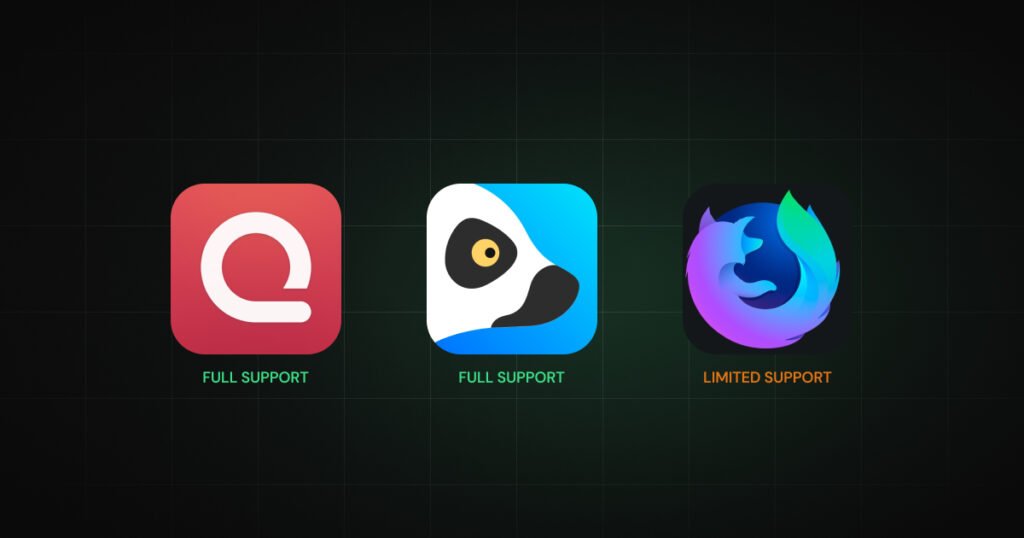
Quetta Browser and Lemur Browser both support Chrome extensions on Android and run DeniedPixels with full functionality — image censoring, video censoring, all censoring styles, detection zones, modes, everything works the same as on desktop.
Both browsers are free and available on the Google Play Store.
How to install
We strongly recommend installing an ad blocker alongside DeniedPixels
Ad-heavy sites load dozens of extra images and autoplay videos (we’ve seen up to 3-4 videos censoring processes at the same time!) that the extension has to process on top of the actual content. On mobile hardware, this can cause noticeable lag. An ad blocker removes the junk before DeniedPixels ever sees it, resulting in smoother video censoring and better battery life. Check out our ad blocker performance guide for more details.
Open Quetta or Lemur Browser on your Android device, navigate to the Chrome Web Store, search for DeniedPixels, and install it directly. The process is the same as installing any Chrome extension — the browser handles it natively. Once installed, open the extension settings and configure your detection zones, censoring style, and any modes you want active.
Important
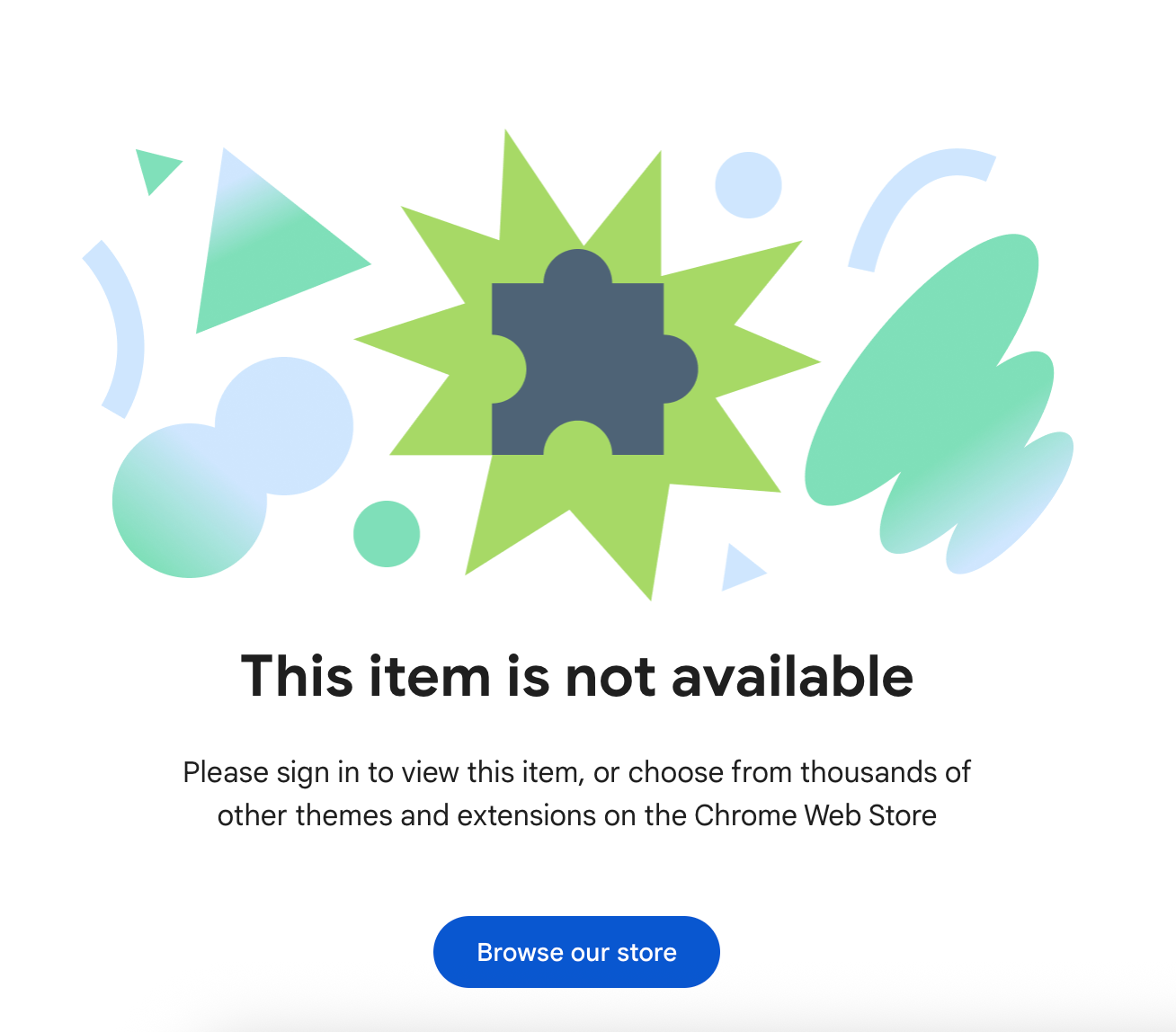
DeniedPixels is marked as “mature” on the Chrome Web Store. If you’re not signed in to your Google account, the extension won’t appear in search results and even visiting the direct link will show “This item is not available” Make sure you’re logged in before searching or opening the link. Still having trouble? Reach out to us on Discord and we’ll help you out.
Limited support
Firefox Mobile supports browser extensions through the Firefox Add-ons store. DeniedPixels works on Firefox Mobile for image censoring, but video censoring has limited functionality. If video censoring is important to you, Quetta or Lemur are the better options for now.
Not supported
Chrome for Android and Opera for Android do not support browser extensions at all. This is a limitation of those browsers, not DeniedPixels — no Chrome extension works on them. Google has not indicated plans to add extension support to Chrome on Android.
Other browsers
There are other Chromium-based Android browsers that claim extension support (Kiwi, Yandex, etc.) but these haven’t been tested with DeniedPixels yet. They may work, they may not. If you try one and it works, let us know and we’ll add it to this list.
Performance on mobile
The AI model runs on your device, and phones vary a lot in processing power. The good news is that DeniedPixels has enough performance settings to tune it for anything from a budget phone to a flagship.
If things feel sluggish, start by raising the Video Sample Rate and Video Fast Rate — this makes the AI check less frequently, which reduces load. You can also switch video mode to Full Blur or Black Box to skip AI detection on video entirely.
If your phone handles things fine and you want tighter, more accurate video censoring, go the other direction. Try dropping Video Sample Rate to 0.5 and Video Fast Rate to 100ms first. If that runs smooth, push it further — 0.1 and 30ms gives you near-real-time frame tracking. Just step down gradually and stop if you notice lag or heat.
For the inference backend, leave it on Auto. If you’re getting crashes or overheating, switch to CPU Only.